When exporting a backup using All-in-One WP Migration Pro, you can choose between different compression options. These options allow you to balance export speed and file size depending on your server performance and storage availability.
This article explains the available compression types, when to use each one, and how to configure them.
Available Compression Options
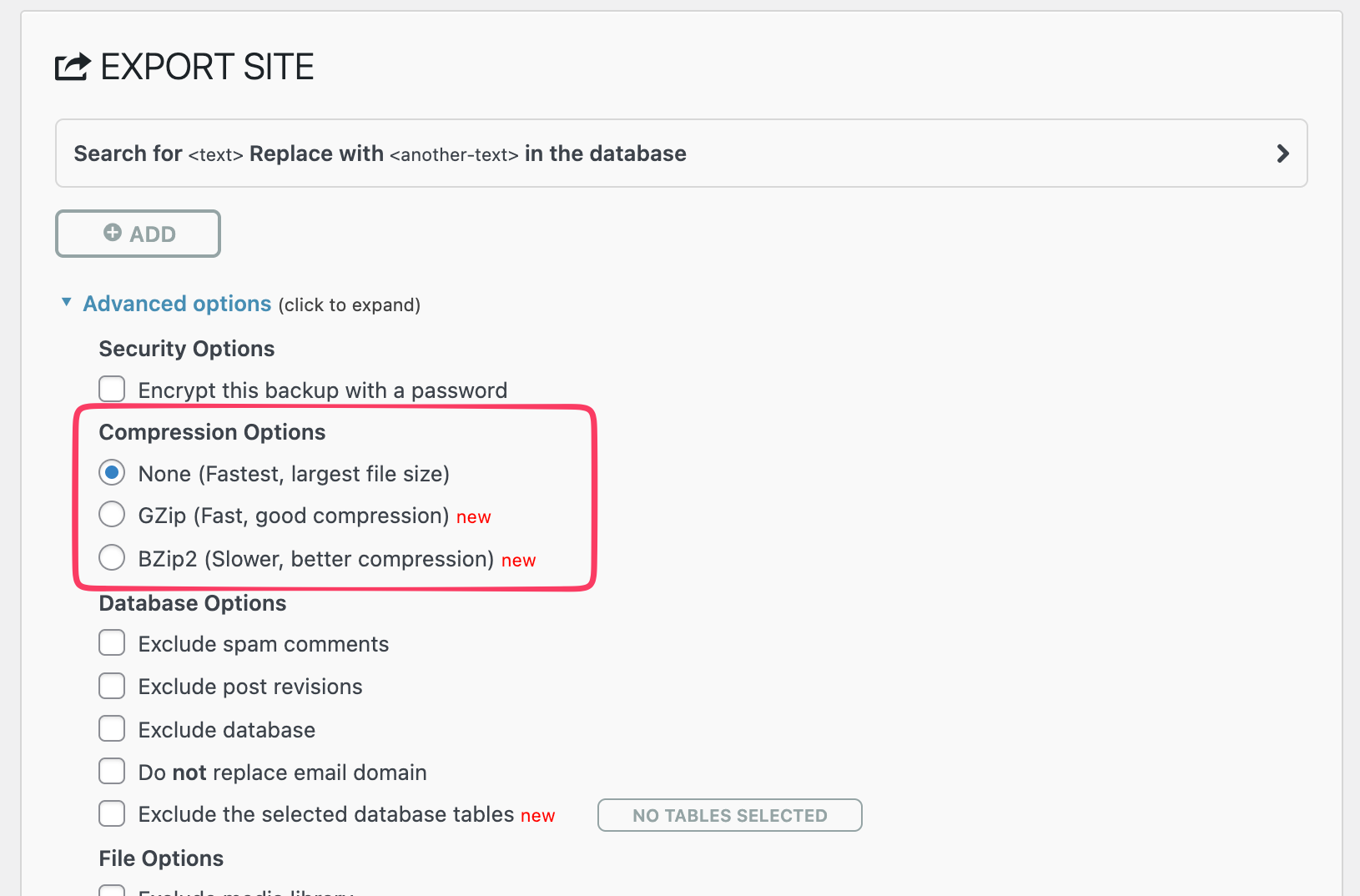
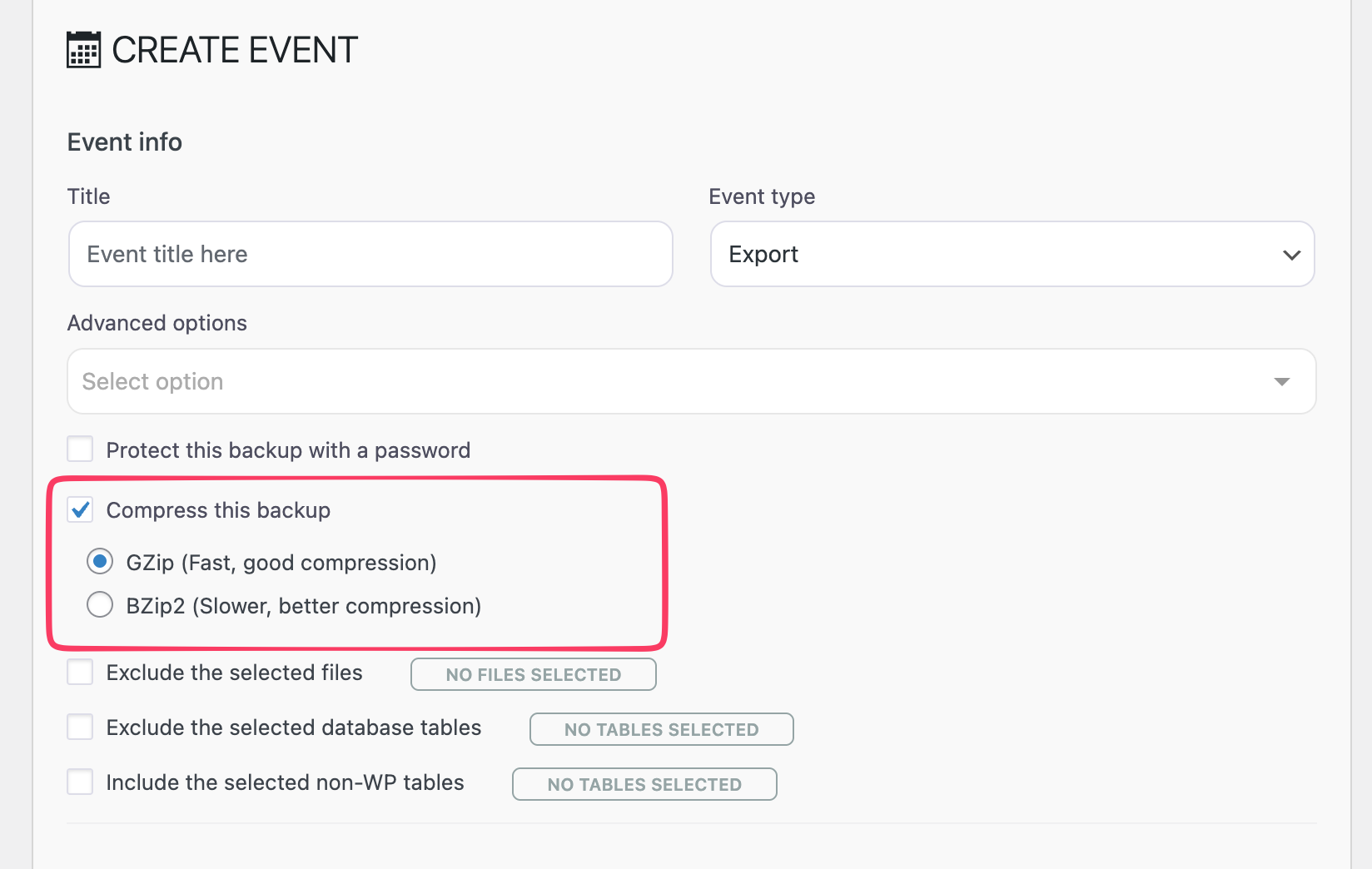
When creating an export, either for the manual export or scheduled export, navigate to Advanced Options to find the Compression Options setting. You will see up to three available options:
None (Fastest, Largest File Size)
This is the default setting.
• Creates the backup as quickly as possible
• Does not compress the archive
• Results in the largest backup file size
You have sufficient storage space and want the fastest possible export process.
GZip (Fast, Good Compression)
• Compresses your backup using GZip compression
• Provides a good balance between speed and file size
• Slightly increases export time compared to “None”
You want to reduce backup size without significantly increasing export time.
BZip2 (Slower, Better Compression)
• Compresses your backup using BZip2 compression
• Produces the smallest backup file size
• Takes longer to complete than GZip
Storage space is limited and you do not mind waiting longer for the export to finish.
How to Enable Compression During Export
Follow these steps to choose your preferred compression option:
- Go to All-in-One WP Migration → Export in your WordPress dashboard.
- Click Advanced Options to expand the settings.
- Locate the Compression Options section.
- Select your preferred compression type.
- Proceed with your export as usual.
Why Don’t I See These Compression Options?
Compression options only appear if your server has the required PHP extensions installed. GZip requires the zlib PHP extension, and BZip2 requires the bz2 PHP extension. If you do not see these options, contact your hosting provider and ask them to enable the required PHP extensions (zlib and/or bz2). Once enabled, refresh your WordPress dashboard and check the Export → Advanced Options section again.